July 6, 2012  by Jared Goralnick
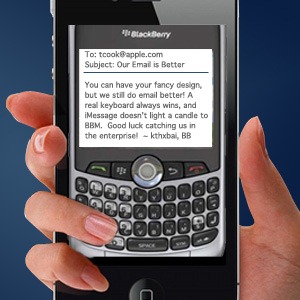 RIM gets a bad rap. It set out to create the best email experience for mobile, and it did that. Unfortunately for them, smartphones now do a lot more than email.
Still, it’s worth pausing to look into what BlackBerry brought to mobile email, and to point out how iPhone and Android users can replicate some of RIM’s best features. Continue reading…
Filed under: AwayFind, Email, Mobile, Productivity, Technology, Tools I Use
January 18, 2011 by Jared Goralnick
 By now, many resolutions have been broken. Radical change is difficult, and it doesn’t happen overnight.
But there is a reliable process for building the right habits. In The 4-Hour Body, Tim Ferriss pulls from lifehacking and game mechanics to break it down.
Continue reading…
Filed under: 4-Hour Workweek, Happiness, Productivity, Tools I Use
December 27, 2010 by Jared Goralnick
 This was a year of change. But that change wasn’t from some big events or actions, it was from patience and process.
Here’s a review of 2010—but feel free to skip to “slogging to speediness”—those changes are what got me through 2010 and may help you, too.
Continue reading…
Filed under: Business, Happiness, Productivity, Technology, Tools I Use
January 25, 2010 by Jared Goralnick
 Happy Monday. We’re 7% through the year–are you 7% through your goals? Let’s make this happen together.
Tomorrow at 6pm EST, over 300 people will phone in to Jason Drohn and I go through the top seven productivity killers—and offer solutions. It’s free, too.
Continue reading…
Filed under: Business, Productivity, Technology, Tools I Use
May 17, 2009 by Jared Goralnick
 Gmail has a series of optional features called Gmail Labs. If you’re a Gmail user, some of these can add serious time to your day.
If you want to get yourself out of trouble and be more efficient in Gmail, installing these takes about 60 seconds.
Continue reading…
Filed under: Business, Email, Productivity, Technology, Tools I Use
February 6, 2009 by Jared Goralnick
 Applying concepts of productivity to simply work more is missing the point.
Tonight I delivered a presentation at Ignite Baltimore that addressed applying concepts in productivity to make for a happier life.
Continue reading…
Filed under: 4-Hour Workweek, Business, Happiness, Productivity, Social Media, Technology, Tools I Use
December 23, 2008 by Jared Goralnick
 Sometimes we hold priorities too high, and we miss out on much of life’s enjoyment. Photography is one way that I’ve been able to open my eyes.
The following is a combined “why photography?” and a brief guide to what I’ve found helpful both for equipment (my camera, bag, etc) and education.
Continue reading…
Filed under: Happiness, Tools I Use
August 11, 2008 by Jared Goralnick
 The history, architecture and even cuisine come second when I’m traveling. I want to meet people and learn through interaction. But meeting people (especially locals) in distant cities had always been a matter of chance.
Today, social networks can stack the odds. They made all the difference in my recent trip—and in this post I’ll describe how (with some specific tips).
Continue reading…
Filed under: Productivity, Social Media, Tools I Use
July 23, 2008 by Jared Goralnick
 The headline’s not meant to sound exotic. The surprise for me was how much I’ve relied on technology and the web to plan the trip I’m now on. I want to share some quick tips that have been surprisingly effective.
If you plan to travel domestically or abroad, I hope this will save you some money and help you travel lighter…while still staying connected (if you’d like). If you have other tips to share, I’d enjoy them, too!
Continue reading…
Filed under: Business, Mobile, Productivity, Tools I Use
July 18, 2008 by Jared Goralnick
 I’m frequently asked if I prefer Gmail or Outlook Exchange, but I happily use both. Today I posted a thorough comparison on Lifehacker, but the following is how and why I use both.
Not only will this explain how I use Gmail and Outlook, but it’ll describe a fair amount of my workflow with email and social media.
Continue reading…
Filed under: Business, Email, Productivity, Social Media, Technology, Tools I Use


 8
8